Использование приложения для iStock ESP/en: различия между версиями
Перейти к навигации
Перейти к поиску
(Новая страница: «===How to Install===») |
(Новая страница: «#Download the ZIP archive and extract it to any folder on your computer #Open Chrome and go to Settings. Navigate to the Extensions section. Enable Developer mode...») |
||
| Строка 3: | Строка 3: | ||
===How to Install=== | ===How to Install=== | ||
| − | + | #Download the ZIP archive and extract it to any folder on your computer | |
| − | # | + | #Open Chrome and go to Settings. Navigate to the Extensions section. Enable Developer mode at the top of the page |
| − | # | + | #Click the '''Load unpacked''' button |
| − | # | + | #Select the folder where you extracted the extension |
| − | # | + | #Wait for the pop‑up notification to appear |
| − | # | + | #Log into ESP. Keep the extension tab open until you've submitted all files! |
| − | # | ||
| − | |||
<div lang="ru" dir="ltr" class="mw-content-ltr"> | <div lang="ru" dir="ltr" class="mw-content-ltr"> | ||
Версия 15:39, 8 апреля 2026
Some time ago, a new iStock ESP protection system made submitting through M+ and StockSubmitter impossible. However, we've developed a workaround in a form of a browser extension for Chrome. While the extension might also work in other browsers, please note that testing on is not yet complete.
How to Install
- Download the ZIP archive and extract it to any folder on your computer
- Open Chrome and go to Settings. Navigate to the Extensions section. Enable Developer mode at the top of the page
- Click the Load unpacked button
- Select the folder where you extracted the extension
- Wait for the pop‑up notification to appear
- Log into ESP. Keep the extension tab open until you've submitted all files!
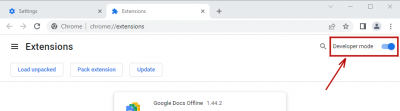
Режим разработчика
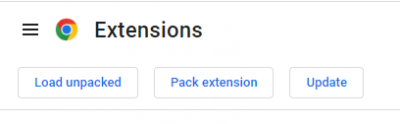
Загрузка расширения


После этих операций уточнения, загрузка и сабмит должны работать корректно. Скорость загрузки зависит от вашего интернет соединения. Для загрузки браузер должен быть открыт. По всем вопросам обращайтесь в чат поддержки M+.
