Keywording with AI service
For stock contributors, filling in metadata is arguably the most monotonous and time-consuming part. The creative work is done and the files are ready, yet this final step becomes a bottleneck. It not only slows the process down but also demands sustained concentration. The QuickMeta tool in both M+ and Stocksubmitter was an initial step toward fastening this task. However, Shutterstock data only partially solves the problem and still requires your direct involvement.
This is where artificial intelligence comes into play. Typical and repetitive metadata structures are precisely the kind of task where modern neural networks deliver the best results.
How it works?
Our AI keywording tool rapidly fills in file metadata and can process up to 100 works simultaneously. An order can be placed directly within the M+ or StockSubmitter interface. The built-in tool analyzes your image, video, or vector file, generating relevant titles, descriptions and keywords that meet microstock platform requirements. After this, you only need to attach releases (if required) and upload the files to the microstock agencies. More details on the M+ workflow can be found here.
Similar files within a single order (with approximately 80% image similarity) are grouped into groups of ten and processed individually. This ensures they receive unique titles, descriptions, and keywords, even if they belong in the same footage. This approach is particularly effective for large series and boosts visibility across different search queries, thereby increasing a chance for a successful sale.
Preparing files
AI keywording can be applied to both individual files and entire folders. However, the system does not automatically redirect you to completed orders, and an ID is generated for the entire order rather than for each individual file. Therefore, we strongly recommend creating a separate folder for AI keywording orders if you wish to review the results later and do not plan to automatically fill metadata to an entire folder at once (for example, with a current shoot).
We strongly advise against submitting more than 100 files at a time. First, processing will take a considerable amount of time, especially for videos. Second, the risk of errors increases significantly.
Processing video files
To ensure high-quality analysis, the neural network breaks each video down into individual frames before generating metadata. This approach produces more accurate and unique results, but it also increases processing time. We ask for your patience during this stage.
If you submit both photos and videos together, and the similarity between files within a single order reaches 80%, they will automatically be grouped together. Each group of up to 10 files then receives unique metadata.
Common workflow
The procedure varies slightly depending on whether you are processing a single file, multiple files, or an entire folder.
To generate metadata via AI for a single file, select the file in the My Files gallery, then click the page-with-pencil icon in the top menu.
To generate metadata via AI for several files simultaneously, select them in My Files gallery, then click the page-with-pencil icon in the top menu.
To keyword an entire folder, navigate to the File Tree tab in My Files. Hover your mouse cursor over the desired folder, then click the "Create order in keywording service" icon (the page-with-pencil icon) in the appeared menu.
In all cases, an order placement window will appear.
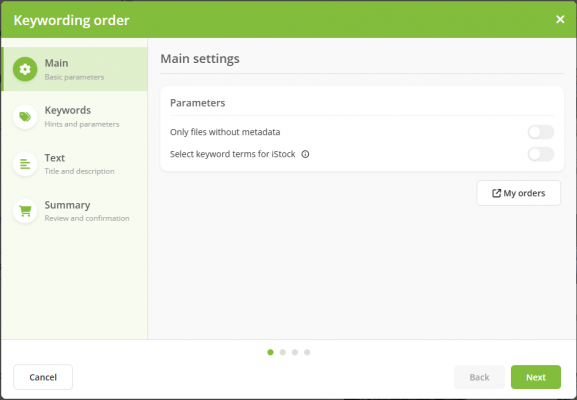
AI keywording order window.

Click My Orders button to see a separate page with every file you've processed using the AI keywording service.
The dots at the bottom duplicate the menu items on the left. You can also navigate back through the list using the Back button at the bottom right of the order placement window.
To cancel an order, click the Cancel button at the bottom left or click the X in the top right corner of the window.
Main
The Main section contains the key parameters for your order.
Toggle on "Only files without metadata" if you do NOT want files with existing metadata to be overwritten. Otherwise, their metadata will be automatically overwritten, and the original metadata cannot be restored.
Toggle on "Select keyword terms for iStock" if you want to use AI to select keyword terms for iStock.
Keywords
The "Keywords" section contains configuration options for keyword generation. Generated keywords are automatically sorted by relevance.
- In the "Hints for AI" field, you can add clarifications in any language. Hints are intended to highlight aspects you want to emphasize: key objects, emotions, colors, animal breeds, and so on. The more precise and clear the instruction the neural network receives, the better the result will be. Example: "Emphasize emotions and list the names of animals in the photographs."
Please note that this field should not be used to set keyword sorting preferences or specify the number of keywords. The number of keywords is controlled by slider. Keyword sorting by relevance is applied by default.
- Enabling the "File name as a hint" toggle will automatically add your file's name (not the title in M+) to the AI hints.
- Keyword count determines how many keywords you want generated for your file.
- Enabling the "Double keywords" toggle will include two-word key phrases in the output. When activated, a percentage setting for double keywords will appear below.
- The "At the beginning of the list" and "At the end of the list" fields in the "Addition and exclusion" section will forcibly add specific keywords either before or after generation. Words you enter here are not added on top of the generated ones: the total keyword count remains exactly what you set. For example, if you request 50 keywords but manually add 5 at the beginning and 5 at the end, only 40 will be generated.
- The "Exclude keywords" field lists unwanted terms, and the neural network will take them into account during generation. Please note that only exact words are excluded; the output may still contain terms with identical meanings (e.g., excluding "grass" does not exclude "plant," etc.).
Title and description
This section controls the generation settings for the work's title and description.
- The "Title length" slider determines the length of the generated title in characters. Spaces count as individual characters.
- You can choose one of the following title options:
- "Standard length" – generates a title with the number of characters you specify (using the slider above).
- "Same as description" – generates a title with the same character count as the description.
- "Copy from description" – makes the title and description identical.
- The "Description length" slider determines the length of the generated description in characters. Spaces count as individual characters.
- The "Additional" section allows placing text before and after the description and/or title, respectively. These words are added to the generated character count. For example, if you set the description to be 30 characters and add 5 characters at the beginning and 5 at the end, the final description will be 40 characters long.
- "Use uppercase for title and description" – capitalizes the first letter of every generated word, Like This, For Example.
Order review
This section provides an overview of the order specifications, including the total number of files in the batch, the configured processing parameters, and cost per file.
If you are satisfied with the price, click "Submit" and wait for the order to be completed.
Pricing
Current pricing is structured as follows:
- 1 photograph or illustration – EUR.0.01
- 1 vector file – EUR.0.01
- 1 video file (any length) – EUR.0.02
- 1 keyword terms for iStock completion – EUR.0.01
This information is provided for reference only. Always verify the final cost of your order in the AI keywording interface.
Common issues and solutions
My order processed with an error or did not process at all
If your order has not been completed within an hour, please contact technical support via the M+ or StockSubmitter chat. We will investigate the issue and issue a refund.
Please avoid including more than 100 files in a single order to minimize the occurrence of such errors.
Releases were not attached to the file
Currently, we do not track your releases, and the AI is unable to determine whether a release needs to be attached from your releases database. This step must be done manually.
The order was completed, but the file's metadata has not changed
Please follow this link and click the "Force Apply" button for the completed order.
