Работа с MicroStock+Trends/en: различия между версиями
| Строка 18: | Строка 18: | ||
[[File:Indicator.png|center]]<br clear=all> | [[File:Indicator.png|center]]<br clear=all> | ||
| − | + | A brighter indicator padding color combined with a higher numeric value indicates a greater probability that the file is potentially appealing to buyers. The illustration above demonstrates the possible gradations of the indicator's color intensity. | |
<div lang="ru" dir="ltr" class="mw-content-ltr"> | <div lang="ru" dir="ltr" class="mw-content-ltr"> | ||
Версия 18:05, 23 апреля 2026
Содержание
What’s Microstock+ Trends?
Microstock+ Trends is a service that determines the market trends by analyzing the information gathered from one of the biggest microstock agencies — Shutterstock.
How can I benefit from it?
With M+ Trends you can easily track fresh content that’s quickly heading to the top. Using this information you can make similar content just in time to get into the trend and earn great sales. There are many search, filtering and sorting options that allow you to fine-tune the displayed results and get a full content coverage. In addition, every M+ Trends user receives a trend indicator that’s integrated into the M+ interface. This indicator allows you to predict popularity and sales of your files.
How does Microstock+ Trends work?
M+ Trends continuously monitors Shutterstock search results for every type of content (video, photo, vectors and illustrations). Each time a file changes its position, M+ Trends stores this information in its database. After that it’s using it to build the file position graph and determine its “trendiness”.
Trend indicator
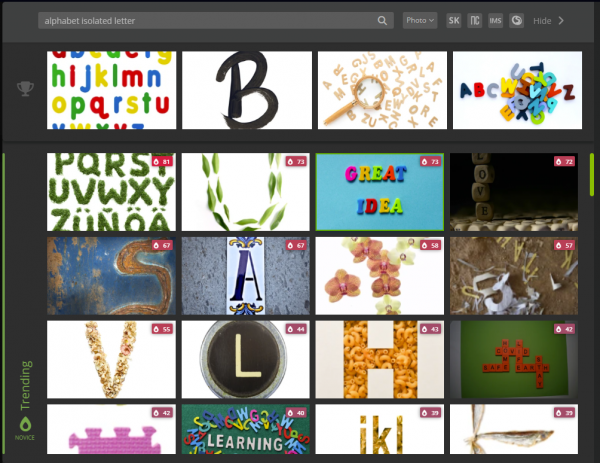
All M+Trends plans include a trend indicator on your files. It is integrated into M+ and StockSubmitter, so immediately after purchasing a subscription, you will notice colored badges with a flame icon and a number displaying the file's trendiness from 0 to 100.
The trend calculation algorithm is based on analyzing the arithmetic mean rating of all keywords, but the formula is much more complex and takes into account aspects such as the frequency of a keyword's use in other works on stock platforms or its alignment with the selected category and content type. Thus, the same keywords may be used more often for video than for photo, which increases the number of competitors for your work among videos. Accordingly, its trendiness will be lower, while a work with similar keywords among photos will have higher trendiness.
A few successful keywords can significantly increase your work's trendiness! They will help you enter narrow and trending niches, which means more frequent appearances in search results.
Search results change over time: people pick up certain trends, produce more works in a specific niche, or, conversely, some works become scarcer as demand grows, which also affects the indicator. We continually improve our calculation methods, so results may become more accurate, and for this reason, they may also decrease or increase without any action on your part. This last factor makes the indicator more honest and useful for you.
Works with a lower indicator value still have a chance to sell, but more trending works promise higher overall sales in the long run. And although this is just a tool, it can become a reliable guide in a situation of increasing competition in the microstock market.

A brighter indicator padding color combined with a higher numeric value indicates a greater probability that the file is potentially appealing to buyers. The illustration above demonstrates the possible gradations of the indicator's color intensity.
Автоподбор ключевых на основе трендов
вкладка M+Trends в редакторе метадаты

Для всех пользователей с подпиской на M+Trends открыты расширенные возможности автоматического подбора метаданных. В редакторе метаданных M+ на отдельной вкладке автоподбора вы найдёте подборку превью самых трендовых работ из базы Shutterstock, что позволяет мгновенно копировать их названия и ключевые слова в свою работу.
Наши нейросети анализируют ваше превью, автоматически формируют поисковый запрос и выводят релевантную подборку в инструменте автоподбора. При этом вы в любой момент можете отредактировать, дополнить или полностью изменить этот запрос вручную.
Подробнее о заполнении метаданных с помощью автоподбора можно почитать в этой статье.
Language and subscription settings
You can choose the interface language (English or Russian) and check your subscription plan in the top right corner. Clicking on the current language lets you to select another one. And if you click on the subscription plan you will be redirected into the Store where you can change it.
Stock Files section
“Stock Files” section is located in the top left corner. In this section you can explore trending categories and keywords. You can also view the sales graph of each file that’s built based on our neural network if your current subscription plan includes it (feature is still in development at the moment). We do NOT use the user’s sales data from the agency, we value your privacy and security.
How to work with the “Stock Files” section?

- Open the “Stock Files” section using the corresponding icon in the top left corner.
What do those numbers and icons on the thumbnails in the “Stock Files” section mean?
Once you get the right search options it’s time to analyze the search results. There should be a number of thumbnails to the right depending on your search options. A picture below is an example of a video file thumbnail with a legend.

There will be a green controls panel when you hover a file thumbnail with your mouse. It’s always visible on mobile devices. You can click the corresponding buttons to view the categories and keywords of this file. Clicking it again will hide it. You can select and copy the categories/keywords like any other text on a web page (Ctrl/Cmd+C on a computer, pop-up menu on mobile devices). Clicking the thumbnail itself will open the original file on Shutterstock. There will also be an icon opening the calculated file sales graph if your subscription plan includes it (this feature is still in development). Bottom panel contains information about the file’s position in the global Shutterstock database, age since it’s been approved and it’s M+ rating in stars and as a numeric value. The more the rating the more trendy the file is.
Клик левой кнопкой мыши на иконки «Категории» и «Ключевые слова» в верхней панели отобразят категории и ключевые слова данного файла соответственно. Чтобы их скрыть просто кликните по иконке повторно. Чтобы скопировать ключи или категории, выделите их, как любой другой текст, и воспользуйтесь стандартными сочетаниями для копирования текста (ctrl/cmd+c) или кликните правой кнопкой мыши по выделенному тексту для вызова контекстного меню. На мобильных устройствах выделите текст, а затем скопируйте стандартными средствами вашего девайса.
Если ваш тариф включает график продаж файла, клик левой кнопкой мыши по его иконке отобразит поверх превью расчётный график продаваемости данного файла.
Клик по превью отошлёт к расположению оригинального файла на Shutterstock.
Нижняя панель описывает позицию файла в глобальном топе Shutterstock, его возраст в месяцах от момента появления на сайте, а так же рейтинг М+ в звёздах и количественном значении. Чем выше рейтинг, тем лучше.
Если сомневаетесь, можно проверить есть ли работы с похожими ключевыми словами на низких позициях. Если их нет, то совпадение не случайно и эти ключевые слова имеет смысл взять в работу.
What does the M+ rating show?
The M+ rating reflects the growth rate of a file in the Shutterstock database. Higher M+ rating means the file is quite young and has a great selling potential. Any file that reaches the top 10 page or higher in the search results within its first month on sale will most likely be really successful. According to the statistics, such files get to the top 1 page within a year. During that time it will still have great sales but you won’t be able to see it unless you look through 10 or more pages of the search results. M+ Trends service allows you to find such files with ease.
Рейтинг М+ отражает скорость роста файла в поисковой выдаче и позволяет вычленять потенциальные хиты. Чем выше этот рейтинг, тем файл моложе и перспективнее.
Explore Tops section
“Explore Tops” section icon is located in the top left corner under the “Stock Files” one. In this section you can trace the most popular keywords and categories and see what files contain them.
- Перейдите в раздел «Топ выдачи». Для этого кликните на иконку с графиком в левом меню.
- Выберите тип контента. Кликните по выпадающему списку «Тип» и в нём выберите подходящий тип файлов: видео, фото, векторные файлы или иллюстрации.
- Выберите режим сортировки файлов. По умолчанию файлы сортируются по тегам.
- Выберите интересующие вас категории. По умолчанию М+ Trends выбирает файлы из всех категорий, но вы можете выбрать и одну определённую категорию (например, только животных или только природу).
Please note that if you have the “Category” sorting mode active the last option will not be available!
What do numbers and icons on the thumbnails in the “Explore tops” section mean?
Once you get the right search options it’s time to analyze the search results. There should be a number of thumbnails to the right depending on your search options. A picture below is an example of a video file thumbnail with a legend. “Top For” is set to “by tags”.

Unlike the “Stock Files” section, thumbnails in the “Explore Tops” section have no controls panel and each thumbnail contains four smaller thumbnails grouped by a unifying parameter (in this case it’s a keyword all these files have). Сlick on the thumbnail to open a collection of all content matching this parameter in the “Stock Files” section. A unifying parameter may be a category (all files belonging to the same popular category), author (all content made by the same author), etc.
Microstock+ Trends subscription plans
This service uses a monthly subscription model. You can find more details in the Microstock+ Trends section of our Store. To open the Store please click your current subscription plan in the top right corner. Every subscription plan includes the integrated trending indicator. There are three subscription plans at the moment:
Novice
Provides access to all files submitted more than a year ago and all content in the tops starting from the #20 position. This is a budget subscription plan, a nice way to become familiar with the service.
Pro
Provides access to all files uploaded more than six months ago and all content in the tops starting from the #5 position
Guru
Provides unlimited access to the database. This plan is the only one that has access to the sales graphs (this feature is still in development). It is the most efficient plan in our range because trending files can show their potential within their first 1-3 months on sale. It means the earlier you see the trend the easier it’s for you to be one of the first authors getting into the niche and to gain the biggest advantage.
Guru
Полный доступ к базам данных без ограничений. Этот тариф является самым эффективным в линейке, ведь трендовые файлы могут проявить свой потенциал за первые 1-3 месяца на стоке. Чем раньше вы уловите тренд, тем выше шанс занять нишу в числе первых и получить самое большое преимущество.

