Использование приложения для iStock ESP/en: различия между версиями
Перейти к навигации
Перейти к поиску
(Новая страница: «Some time ago, a new iStock ESP protection system made submitting through M+ and StockSubmitter impossible. However, we've developed a workaround in a form of a b...») |
FuzzyBot (обсуждение | вклад) (Обновление для соответствия новой версии исходной страницы.) |
||
| (не показаны 4 промежуточные версии 1 участника) | |||
| Строка 1: | Строка 1: | ||
| + | <languages /> | ||
Some time ago, a new iStock ESP protection system made submitting through M+ and StockSubmitter impossible. However, we've developed a workaround in a form of a browser extension for Chrome. While the extension might also work in other browsers, please note that testing on is not yet complete. | Some time ago, a new iStock ESP protection system made submitting through M+ and StockSubmitter impossible. However, we've developed a workaround in a form of a browser extension for Chrome. While the extension might also work in other browsers, please note that testing on is not yet complete. | ||
| − | + | ===How to Install=== | |
| − | === | ||
| − | |||
| − | + | #Download the ZIP archive and extract it to any folder on your computer | |
| − | # | + | #Open Chrome and go to Settings. Navigate to the Extensions section. Enable Developer mode at the top of the page |
| − | # | + | #Click the '''Load unpacked''' button |
| − | # | + | #Select the folder where you extracted the extension |
| − | # | + | #Wait for the pop‑up notification to appear |
| − | # | + | #Log into ESP. Keep the extension tab open until you've submitted all files! |
| − | # | ||
| − | |||
| − | |||
<gallery widths=400px heights=200px perrow=7> | <gallery widths=400px heights=200px perrow=7> | ||
| − | File:IStock extension.png|center|frame| | + | File:IStock extension.png|center|frame|Developer mode |
| − | File:Load_extension.png|center|frame| | + | File:Load_extension.png|center|frame|Load Unpacked |
</gallery> | </gallery> | ||
| − | |||
| − | + | After completing these steps, keywording, uploading, and submitting should work correctly. Upload speed depends on your internet connection. Your browser must remain open for the upload to proceed. For any questions, please contact [[Special:MyLanguage/Как мне обратиться в службу поддержки?|M+ support chat]]. | |
| − | |||
| − | |||
Текущая версия на 15:44, 8 апреля 2026
Some time ago, a new iStock ESP protection system made submitting through M+ and StockSubmitter impossible. However, we've developed a workaround in a form of a browser extension for Chrome. While the extension might also work in other browsers, please note that testing on is not yet complete.
How to Install
- Download the ZIP archive and extract it to any folder on your computer
- Open Chrome and go to Settings. Navigate to the Extensions section. Enable Developer mode at the top of the page
- Click the Load unpacked button
- Select the folder where you extracted the extension
- Wait for the pop‑up notification to appear
- Log into ESP. Keep the extension tab open until you've submitted all files!
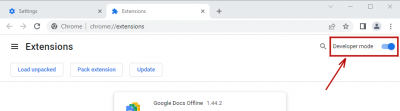
Developer mode
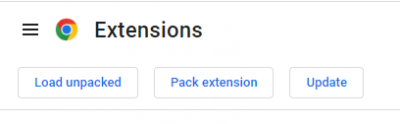
Load Unpacked


After completing these steps, keywording, uploading, and submitting should work correctly. Upload speed depends on your internet connection. Your browser must remain open for the upload to proceed. For any questions, please contact M+ support chat.
