Статусы в MicroStock+/en: различия между версиями
(Новая страница: «This status is indicated by gray color.») |
|||
| (не показано 15 промежуточных версий этого же участника) | |||
| Строка 7: | Строка 7: | ||
The colored scale below the file card allows you to visually assess the overall status of a file: which statuses currently are most common and whether any errors have occurred. By default, statuses are sorted in the order of the stock agencies, but you can always change this in your Dashboard so that statuses of the same color combine into one sector (just like in StockSubmitter). More details on managing files, including how to upload and submit them to stock agencies, can be found in this article [[Special:MyLanguage/Управление файлами | this article]]. | The colored scale below the file card allows you to visually assess the overall status of a file: which statuses currently are most common and whether any errors have occurred. By default, statuses are sorted in the order of the stock agencies, but you can always change this in your Dashboard so that statuses of the same color combine into one sector (just like in StockSubmitter). More details on managing files, including how to upload and submit them to stock agencies, can be found in this article [[Special:MyLanguage/Управление файлами | this article]]. | ||
| − | + | Both StockSubmitter and M+ allow you to configure and schedule the uploads to a chosen microstock agency. In the settings, you can specify when the upload should begin and set up batch uploads with the desired parameters. | |
| − | |||
# Select the file (or files) in the [[Special:MyLanguage/Управление файлами | file gallery]]. | # Select the file (or files) in the [[Special:MyLanguage/Управление файлами | file gallery]]. | ||
| Строка 42: | Строка 41: | ||
=== To get the Ready status your file must meet the following conditions === | === To get the Ready status your file must meet the following conditions === | ||
| − | + | *A file must be uploaded to the M+ cloud storage. Any .EPS file must be paired with a .JPG preview | |
| − | + | *A file must have a [[Special:MyLanguage/Подготовка, загрузка и сабмит файлов#Атрибутирование файлов | title, a description, categories, keywords and other metadata]] | |
| − | + | *Metadata must comply with the Microstock agency requirements (most known issues are described below). | |
| − | |||
| − | |||
| − | + | ===This status could mean one of the following=== | |
| − | + | :*This microstock agency doesn't accept content of such type (for example, 123RF doesn't accept video files); | |
| − | + | :*You have manually disabled uploading content of such type to this microstock agency in the settings; | |
| − | + | :*You have manually disabled the upload of this file type to a specific agency within the submission settings | |
| + | :*You've manually disabled the upload of this file to a specific agency | ||
| − | + | When a file receives the Ready status, you can proceed with uploading it to the stock agencies. Select the file or files you want, select the necessary microstock agencies (or select "Select All" ), and then click the "Upload Selected" button. | |
| − | |||
| − | |||
[[File:Third eng.jpg|thumb|left]]<br clear=all> | [[File:Third eng.jpg|thumb|left]]<br clear=all> | ||
| Строка 62: | Строка 58: | ||
[[File:Scheduled eng.jpg|left|400px]]<br clear=all> | [[File:Scheduled eng.jpg|left|400px]]<br clear=all> | ||
| − | + | Both StockSubmitter and M+ allow you to configure and schedule the uploads to a chosen microstock agency. In the settings, you can specify when the upload should begin and set up batch uploads with the desired parameters. | |
| − | Both StockSubmitter and M+ allow to schedule | ||
| − | |||
To schedule an upload select a file (or files) you'd like to upload, open the Upload/Submit tab, select the desired microstock agency(ies) or check the Select all checkbox, then click the icon with a watch above the file gallery. Once a pop up appears, adjust the settings and click the "Schedule" button to proceed. Once you do so, the file(s) will be scheduled for uploading at the specified time and the bar above the file thumbnail (or a part of it) will turn light-blue. | To schedule an upload select a file (or files) you'd like to upload, open the Upload/Submit tab, select the desired microstock agency(ies) or check the Select all checkbox, then click the icon with a watch above the file gallery. Once a pop up appears, adjust the settings and click the "Schedule" button to proceed. Once you do so, the file(s) will be scheduled for uploading at the specified time and the bar above the file thumbnail (or a part of it) will turn light-blue. | ||
| − | < | + | <gallery widths=700px heights=300px perrow=7> |
| − | + | File:Sched.png|center|frame|How to schedule a file upload | |
| − | + | </gallery><br clear=all> | |
==Queued== | ==Queued== | ||
[[File:Queued eng.jpg|left|400px]]<br clear=all> | [[File:Queued eng.jpg|left|400px]]<br clear=all> | ||
| − | + | This status indicates that a file has been queued for an upload to a microstock agency. Microstock agencies are known for their paranoidal attitude and tend to be suspicious of multi-threaded upload. M+ imitates a behavior of a real person to not arouse any suspicion by creating a queue of files. Normally, it shouldn't take long, but a huge amount of heavy files or a high load on the agency server may cause delays. If the ETA haven't been shortening for a few hours please contact the [[Special:MyLanguage/Как мне обратиться в службу поддержки? | tech support]]. | |
| − | This status indicates that a file has been queued for an upload to a microstock agency. Microstock agencies are known for their paranoidal attitude and tend to be suspicious of multi-threaded upload. M+ imitates a behavior of a real person to not arouse any suspicion by creating a queue of files. Normally, it shouldn't take long, but a huge amount of heavy files or a high load on the agency server may cause delays. If the ETA haven't been shortening for a few hours please contact the tech support. | ||
| − | |||
==Uploading== | ==Uploading== | ||
| Строка 98: | Строка 90: | ||
| − | |||
===Frequently asked questions on this step=== | ===Frequently asked questions on this step=== | ||
:*''Why a successfully uploaded file lacks a part/all metadata? Why the description and the title have been switched?''<br /> When your file has been successfully uploaded, the microstock agency handles the file's metadata according to it's own algorithm and there's no way to affect this process. After a successful submission all metadata should appear as you have inputted it. | :*''Why a successfully uploaded file lacks a part/all metadata? Why the description and the title have been switched?''<br /> When your file has been successfully uploaded, the microstock agency handles the file's metadata according to it's own algorithm and there's no way to affect this process. After a successful submission all metadata should appear as you have inputted it. | ||
| − | |||
:*''Submission process takes too long! How to speed up the process? How to launch a submission manually?''<br /> M+ can't force the submission process because that mostly depends on the microstock agency. If the files haven't been submitted yet then it was simply not possible. As soon as the submission will be possible M+ will perform it so please just give it some time. | :*''Submission process takes too long! How to speed up the process? How to launch a submission manually?''<br /> M+ can't force the submission process because that mostly depends on the microstock agency. If the files haven't been submitted yet then it was simply not possible. As soon as the submission will be possible M+ will perform it so please just give it some time. | ||
:*''My files got submitted to every agency but Dissolve! What do I do?'' <br /> This microstock agency accepts files in batches only (at least 10 files per batch). Please upload more files to the same batch if there are less than 10 files. | :*''My files got submitted to every agency but Dissolve! What do I do?'' <br /> This microstock agency accepts files in batches only (at least 10 files per batch). Please upload more files to the same batch if there are less than 10 files. | ||
:*''Freepik doesn't have batches but the submission doesn't happen there!''<br />They require you to upload at least 10 files before submitting them will be possible. | :*''Freepik doesn't have batches but the submission doesn't happen there!''<br />They require you to upload at least 10 files before submitting them will be possible. | ||
| − | |||
| − | |||
===Don't forget to check the following=== | ===Don't forget to check the following=== | ||
:*Have you gone over the microstock agency submission limit? Some microstock agencies like VideoHive and Bigstock have their own submission limit. Please, check if you haven't exceeded it. | :*Have you gone over the microstock agency submission limit? Some microstock agencies like VideoHive and Bigstock have their own submission limit. Please, check if you haven't exceeded it. | ||
| Строка 113: | Строка 101: | ||
:*Does the agency website work at the moment? Didn't they stop accepting content temporarily or permanently? We do our best to keep track of such events and display messages for you but it's still possible that we're not aware of something like that. | :*Does the agency website work at the moment? Didn't they stop accepting content temporarily or permanently? We do our best to keep track of such events and display messages for you but it's still possible that we're not aware of something like that. | ||
:*Does the file meet the microstock agency's requirements? | :*Does the file meet the microstock agency's requirements? | ||
| − | + | :*For assistance with frequently encountered issues, please refer to [[Special:MyLanguage/Решение наиболее распространённых проблем|this article]]. | |
| − | + | If all conditions are met, the submission will complete within 5–10 minutes after the file appears on the microstock agency (occasionally it may take up to an hour). If more than an hour has passed and all the above conditions have been satisfied, please contact tech support. | |
| − | If all conditions | ||
| − | |||
==Submitted== | ==Submitted== | ||
| Строка 128: | Строка 114: | ||
[[File:Submit failed eng.jpg|left|400px]]<br clear=all> | [[File:Submit failed eng.jpg|left|400px]]<br clear=all> | ||
| − | |||
This status indicates that an error has occurred during the submission process. For details visit the Upload/Submit tab and find the microstock agency with a pink colored square marker. You will see a specific error message next to it. Hover your mouse over the error message to see a proposed solution for the issue. Correct the error, change the status to Uploaded and let the M+ try to submit it again. | This status indicates that an error has occurred during the submission process. For details visit the Upload/Submit tab and find the microstock agency with a pink colored square marker. You will see a specific error message next to it. Hover your mouse over the error message to see a proposed solution for the issue. Correct the error, change the status to Uploaded and let the M+ try to submit it again. | ||
It's a common issue to see this status for Shutterstock if there are minor keyword issues like spam/misspelled keywords and you've disabled resolving the minor issues automatically in the Shutterstock settings in M+. In that case please enable it back and change the file status to Uploaded. | It's a common issue to see this status for Shutterstock if there are minor keyword issues like spam/misspelled keywords and you've disabled resolving the minor issues automatically in the Shutterstock settings in M+. In that case please enable it back and change the file status to Uploaded. | ||
| − | |||
==Out of submissions== | ==Out of submissions== | ||
| Строка 141: | Строка 125: | ||
;There are several solutions for the issue | ;There are several solutions for the issue | ||
| − | + | :*Purchase a paid subscription plan. You can find information about plans and complete a purchase in the [[Special:MyLanguage/Управление тарифами и пакетами подписок | store]] by clicking on your balance in the upper right corner of Microstock+ or by selecting the corresponding option in the left-hand menu. In the store, select "Change plan" from the top left tile. | |
:*Wait for the next 30-day period to start. Then you'll be able to use another 33 submissions to each microstock agency. | :*Wait for the next 30-day period to start. Then you'll be able to use another 33 submissions to each microstock agency. | ||
| − | :* | + | :*Only submit to stock agencies with provide free unlimited submissions |
| − | + | :*Submit files directly to the microstock agency websites manually, without utilizing MicroStock+ or StockSubmitter. Please note that this option is recommended only as a last resort. Be sure to mark these files with the "Submitted" status in the M+ interface. To do this, select the file, go to the Upload / Submit tab to the right of the folder tree, choose the relevant microstock agency, click on the file status next to it, and select "Submitted". | |
| − | :*Submit files manually without | ||
| − | |||
===If you're using a paid subscription plan=== | ===If you're using a paid subscription plan=== | ||
| Строка 153: | Строка 135: | ||
;There are several solutions for this issue | ;There are several solutions for this issue | ||
| − | + | :*Upgrade to higher subscription plan with a higher limit of submissions. Upon switching, the price difference between the plans will be charged, and your submission limit will be increased for the remaining duration of the current subscription month. Please note that if you do not switch back afterward, the system will automatically renew the new plan on a monthly basis | |
| + | :*Purchase extra submissions. Select "Increase Limit" in the store and buy the required number of submissions. This is a single-time purchase and will not affect the next month; | ||
:*Wait for the next 30-day period to start and you will get as much submissions as available for your plan. Make sure your account balance is enough to prolong the subscription to the next month; | :*Wait for the next 30-day period to start and you will get as much submissions as available for your plan. Make sure your account balance is enough to prolong the subscription to the next month; | ||
| − | :*Purchase | + | :*Purchase a one‑month package with a higher plan. Upon doing so, a new month will be instantly activated under the new plan, superseding the existing subscription period. |
| − | + | :*Only submit to stock agencies with provide free unlimited submissions | |
| − | :* | + | :*Submit files directly to the microstock agency websites manually, without utilizing MicroStock+ or StockSubmitter. Please note that this option is recommended only as a last resort. Be sure to mark these files with the "Submitted" status in the M+ interface. To do this, select the file, go to the Upload / Submit tab to the right of the folder tree, choose the relevant microstock agency, click on the file status next to it, and select "Submitted". |
| − | |||
| − | :*Submit files manually without | ||
| − | |||
==Submitted but missing== | ==Submitted but missing== | ||
| Строка 171: | Строка 151: | ||
[[File:Approved eng.jpg|left|400px]]<br clear=all> | [[File:Approved eng.jpg|left|400px]]<br clear=all> | ||
| − | + | This is the most pleasant status of all! It means that your file has been approved by the reviewers and has been put up for sale. This status is displayed in dark green color. Please note that not all agencies support this status, which will not prevent your works from selling successfully if they have been submitted. | |
| − | This is the most pleasant status of all! It means that your file has been approved by the reviewers and has been put up for sale. This status is displayed in dark green color. | ||
| − | |||
==Rejected== | ==Rejected== | ||
| Строка 183: | Строка 161: | ||
[[File:Ignored eng.jpg|left|400px]]<br clear=all> | [[File:Ignored eng.jpg|left|400px]]<br clear=all> | ||
| − | |||
===This status could mean one of the following=== | ===This status could mean one of the following=== | ||
:*This microstock agency doesn't accept content of such type (for example, 123RF doesn't accept video files); | :*This microstock agency doesn't accept content of such type (for example, 123RF doesn't accept video files); | ||
| − | :*You have manually disabled uploading content of such type to this microstock agency in settings; | + | :*You have manually disabled uploading content of such type to this microstock agency in the settings; |
| − | :*You have manually | + | :*You have manually disabled the upload of this file type to a specific agency within the submission settings |
| − | + | :*You've manually disabled the upload of this file to a specific agency | |
| − | |||
| − | + | This status is indicated by gray color. | |
| − | |||
| − | |||
Текущая версия на 20:33, 1 апреля 2026
Every file passes several states between the moment it has been uploaded to M+ and the moment it gets approved on the microstock agencies. Each state is reflected in M+ interface and called "File status". This manual will help you to understand the file statuses and to solve the known issues related to them.
Содержание
Where can I find the file statuses and how can I change them?
File statuses are displayed in the My Files section under every file card as a colored bar and in the Upload/Submit tab next to every agency name. See more here .
The colored scale below the file card allows you to visually assess the overall status of a file: which statuses currently are most common and whether any errors have occurred. By default, statuses are sorted in the order of the stock agencies, but you can always change this in your Dashboard so that statuses of the same color combine into one sector (just like in StockSubmitter). More details on managing files, including how to upload and submit them to stock agencies, can be found in this article this article.
Both StockSubmitter and M+ allow you to configure and schedule the uploads to a chosen microstock agency. In the settings, you can specify when the upload should begin and set up batch uploads with the desired parameters.
- Select the file (or files) in the file gallery.
- Go to the Upload / Submit tab.
- Use the checkboxes to select the desired microstock agencies from the list, or click "Select All".
- Left-click the three dots to the right of any microstock agency and choose the desired status. Please note that certain statuses (such as "Out of submissions" or "File not ready" ) cannot be changed manually.
Upon completing these steps, all statuses that can be changed will be updated accordingly.
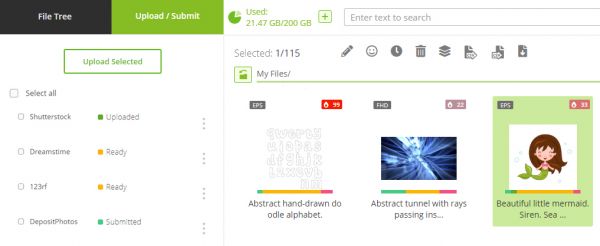
Upload / Submit tab in the interface

Not ready

This status means that your file haven't met one or more of the Microstock agency requirements (see the "Ready" file status). The details can be found in the Upload/Submit tab right to the Microstock agency name (see item 2). Hover an error message with your mouse to see a proposed solution. Once a file will meet the requirements its status will automatically change to Ready.
This status is displayed in pink color.
A required file is missing

All vector files must be uploaded as a pair of a EPS file and a JPG preview. This applies to all microstock agencies! Otherwise the file will have the "A required file is missing" status. To solve this issue just upload a JPG preview with the same name as your EPS file (or a EPS file with the same name as your preview). A pair should get joined together automatically.
Please note that this action must be completed within 24 hours. If this timeframe is not met, simply upload the file to M+ again, ensuring that the preview is included this time.
Ready

This status indicates that your file is ready to be uploaded on the microstock agency and shouldn't cause any issues during submission. It is displayed in yellow color.
To get the Ready status your file must meet the following conditions
- A file must be uploaded to the M+ cloud storage. Any .EPS file must be paired with a .JPG preview
- A file must have a title, a description, categories, keywords and other metadata
- Metadata must comply with the Microstock agency requirements (most known issues are described below).
This status could mean one of the following
- This microstock agency doesn't accept content of such type (for example, 123RF doesn't accept video files);
- You have manually disabled uploading content of such type to this microstock agency in the settings;
- You have manually disabled the upload of this file type to a specific agency within the submission settings
- You've manually disabled the upload of this file to a specific agency
When a file receives the Ready status, you can proceed with uploading it to the stock agencies. Select the file or files you want, select the necessary microstock agencies (or select "Select All" ), and then click the "Upload Selected" button.

Scheduled

Both StockSubmitter and M+ allow you to configure and schedule the uploads to a chosen microstock agency. In the settings, you can specify when the upload should begin and set up batch uploads with the desired parameters.
To schedule an upload select a file (or files) you'd like to upload, open the Upload/Submit tab, select the desired microstock agency(ies) or check the Select all checkbox, then click the icon with a watch above the file gallery. Once a pop up appears, adjust the settings and click the "Schedule" button to proceed. Once you do so, the file(s) will be scheduled for uploading at the specified time and the bar above the file thumbnail (or a part of it) will turn light-blue.
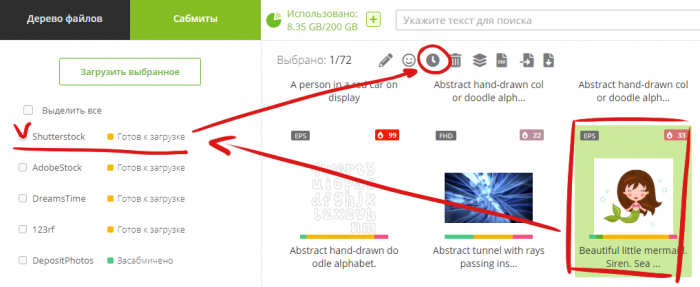
How to schedule a file upload

Queued

This status indicates that a file has been queued for an upload to a microstock agency. Microstock agencies are known for their paranoidal attitude and tend to be suspicious of multi-threaded upload. M+ imitates a behavior of a real person to not arouse any suspicion by creating a queue of files. Normally, it shouldn't take long, but a huge amount of heavy files or a high load on the agency server may cause delays. If the ETA haven't been shortening for a few hours please contact the tech support.
Uploading

This status indicates that a file is currently being uploaded to the microstock agency(ies). It is displayed in lime color. If an upload will be interrupted by an issue, M+ will make another attempt after a short time (the exact period is shown in parentheses below the status). Sometimes it takes several attempts to succeed and it depends on the microstock agency, not M+. Most common issues like Connection error/Maintenance should get resolved on the next uploading attempt and do not require your intervention. If this problem lasts for longer than 24 hours, please contact the tech support.
Upload failed

This status indicates that a fatal error has occurred while trying to upload a file. For details visit the Upload/Submit tab and find the microstock agency with a pink colored square marker. You will see an exact reason for the failure there. Correct the error and repeat an upload attempt (to do so, change the status to Ready, select the problematic agency and click the Upload selected again). If you are not sure how to resolve the error please contact our support.
Uploaded

This status indicates that a file has been successfully uploaded to the microstock agency but haven't been submitted yet. Please, do not confuse these two statuses! When a file is uploaded, it has arrived to the microstock agency site but it isn't in the review queue yet. This status does NOT require any actions. Usually the file appears at the microstock agency within 5-10 minutes after it has been uploaded, but sometimes it takes up to a few hours (depending on the microstock agency). After that the file will be automatically submitted within 30 minutes.
Please! Be patient and do not submit the uploaded file manually if it has appeared at the microstock agency site! It disrupts the procedure and causes errors!
This status is displayed in green color.
Frequently asked questions on this step
- Why a successfully uploaded file lacks a part/all metadata? Why the description and the title have been switched?
When your file has been successfully uploaded, the microstock agency handles the file's metadata according to it's own algorithm and there's no way to affect this process. After a successful submission all metadata should appear as you have inputted it. - Submission process takes too long! How to speed up the process? How to launch a submission manually?
M+ can't force the submission process because that mostly depends on the microstock agency. If the files haven't been submitted yet then it was simply not possible. As soon as the submission will be possible M+ will perform it so please just give it some time. - My files got submitted to every agency but Dissolve! What do I do?
This microstock agency accepts files in batches only (at least 10 files per batch). Please upload more files to the same batch if there are less than 10 files. - Freepik doesn't have batches but the submission doesn't happen there!
They require you to upload at least 10 files before submitting them will be possible.
- Why a successfully uploaded file lacks a part/all metadata? Why the description and the title have been switched?
Don't forget to check the following
- Have you gone over the microstock agency submission limit? Some microstock agencies like VideoHive and Bigstock have their own submission limit. Please, check if you haven't exceeded it.
- Did you pass the exam and fill all required forms on the agency website? Some agencies may require a separate exam for every category or ask you to update your tax forms every few years.
- Does the agency website work at the moment? Didn't they stop accepting content temporarily or permanently? We do our best to keep track of such events and display messages for you but it's still possible that we're not aware of something like that.
- Does the file meet the microstock agency's requirements?
- For assistance with frequently encountered issues, please refer to this article.
If all conditions are met, the submission will complete within 5–10 minutes after the file appears on the microstock agency (occasionally it may take up to an hour). If more than an hour has passed and all the above conditions have been satisfied, please contact tech support.
Submitted

This status indicates that all metadata including the attached release files have been delivered to the microstock agency website and the file have been sent to the reviewers. This step doesn't require any actions, just wait for the reviewers' decision. M+ tracks the approval process and will change the file status to Approved or Rejected if it is supported for this agency. This status is displayed in cyan color.
Submit failed

This status indicates that an error has occurred during the submission process. For details visit the Upload/Submit tab and find the microstock agency with a pink colored square marker. You will see a specific error message next to it. Hover your mouse over the error message to see a proposed solution for the issue. Correct the error, change the status to Uploaded and let the M+ try to submit it again. It's a common issue to see this status for Shutterstock if there are minor keyword issues like spam/misspelled keywords and you've disabled resolving the minor issues automatically in the Shutterstock settings in M+. In that case please enable it back and change the file status to Uploaded.
Out of submissions

If you're using a Free subscription plan
Every M+ and StockSubmitter user has 33 free submissions to each agency per month (30 days from the first submission). If you've noticed the status Out of submissions that means you've gone over the limit.
- There are several solutions for the issue
- Purchase a paid subscription plan. You can find information about plans and complete a purchase in the store by clicking on your balance in the upper right corner of Microstock+ or by selecting the corresponding option in the left-hand menu. In the store, select "Change plan" from the top left tile.
- Wait for the next 30-day period to start. Then you'll be able to use another 33 submissions to each microstock agency.
- Only submit to stock agencies with provide free unlimited submissions
- Submit files directly to the microstock agency websites manually, without utilizing MicroStock+ or StockSubmitter. Please note that this option is recommended only as a last resort. Be sure to mark these files with the "Submitted" status in the M+ interface. To do this, select the file, go to the Upload / Submit tab to the right of the folder tree, choose the relevant microstock agency, click on the file status next to it, and select "Submitted".
If you're using a paid subscription plan
You've gone over the limit of your subscription plan. You can see the details of your subscription plan in our Store. To go to the Store click on your current plan in the top right corner of the M+ interface or open the Store section in the left menu.
- There are several solutions for this issue
- Upgrade to higher subscription plan with a higher limit of submissions. Upon switching, the price difference between the plans will be charged, and your submission limit will be increased for the remaining duration of the current subscription month. Please note that if you do not switch back afterward, the system will automatically renew the new plan on a monthly basis
- Purchase extra submissions. Select "Increase Limit" in the store and buy the required number of submissions. This is a single-time purchase and will not affect the next month;
- Wait for the next 30-day period to start and you will get as much submissions as available for your plan. Make sure your account balance is enough to prolong the subscription to the next month;
- Purchase a one‑month package with a higher plan. Upon doing so, a new month will be instantly activated under the new plan, superseding the existing subscription period.
- Only submit to stock agencies with provide free unlimited submissions
- Submit files directly to the microstock agency websites manually, without utilizing MicroStock+ or StockSubmitter. Please note that this option is recommended only as a last resort. Be sure to mark these files with the "Submitted" status in the M+ interface. To do this, select the file, go to the Upload / Submit tab to the right of the folder tree, choose the relevant microstock agency, click on the file status next to it, and select "Submitted".
Submitted but missing

This is a very rare status that means that your file has been successfully submitted but then disappeared from the microstock agency site. First, check if it has really disappeared. If so, it was caused by a bug on the agency end. In this case, please re-upload the file to the microstock agency. To do so, select the file(s), assign them the Ready status for this agency, then select the agency and click the "Upload Selected" button.
If the file is in fact present on the agency website but has the "Submitted but missing" status in M+, please contact the tech support.
Approved

This is the most pleasant status of all! It means that your file has been approved by the reviewers and has been put up for sale. This status is displayed in dark green color. Please note that not all agencies support this status, which will not prevent your works from selling successfully if they have been submitted.
Rejected

This status indicates that for some reason your file has been declined by the reviewers. If the reason was specified on the microstock agency website it should appear in the M+ interface below the status as well.
Ignored

This status could mean one of the following
- This microstock agency doesn't accept content of such type (for example, 123RF doesn't accept video files);
- You have manually disabled uploading content of such type to this microstock agency in the settings;
- You have manually disabled the upload of this file type to a specific agency within the submission settings
- You've manually disabled the upload of this file to a specific agency
This status is indicated by gray color.
